
How to cut repetitive customer questions in a WooCommerce store
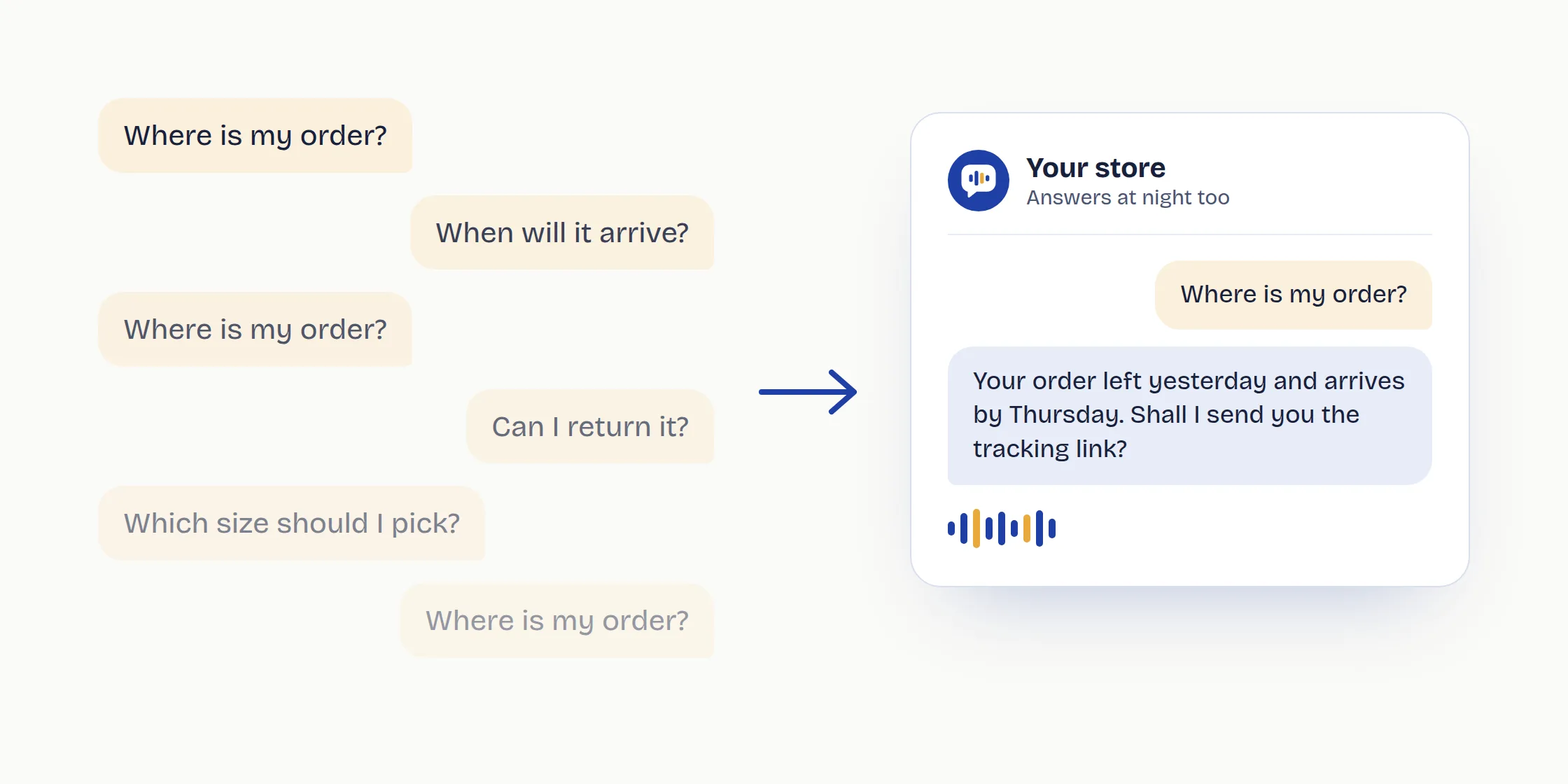
Where's my order? When will it arrive? Can I send it back? Every question you get ten times a week is a piece of information the customer couldn't find on your site. Here are seven fixes, from the simplest to the most automated, to answer before customers have to ask.
In short
- Count the questions you get for one week.
- Send order updates before customers ask for them.
- Put shipping costs and times where customers decide.
- Explain returns in three steps.
- Add the answers you already give to your product pages.
- Build an FAQ page in your customers' own words.
- Let an assistant answer when you're not around.
1.Count the questions for one week
Before changing anything, find out what people actually ask. For seven days, log every question in a spreadsheet, whatever the channel: email, contact form, WhatsApp, phone, social media comments. Three columns are enough: the question, its category, and whether the answer was already somewhere on your site.
An online store usually sees only a handful of categories: order status, shipping times and costs, returns and refunds, product details (size, dimensions, compatibility), payments and stock. A few categories tend to cover most of the messages, and those are the ones to fix first.
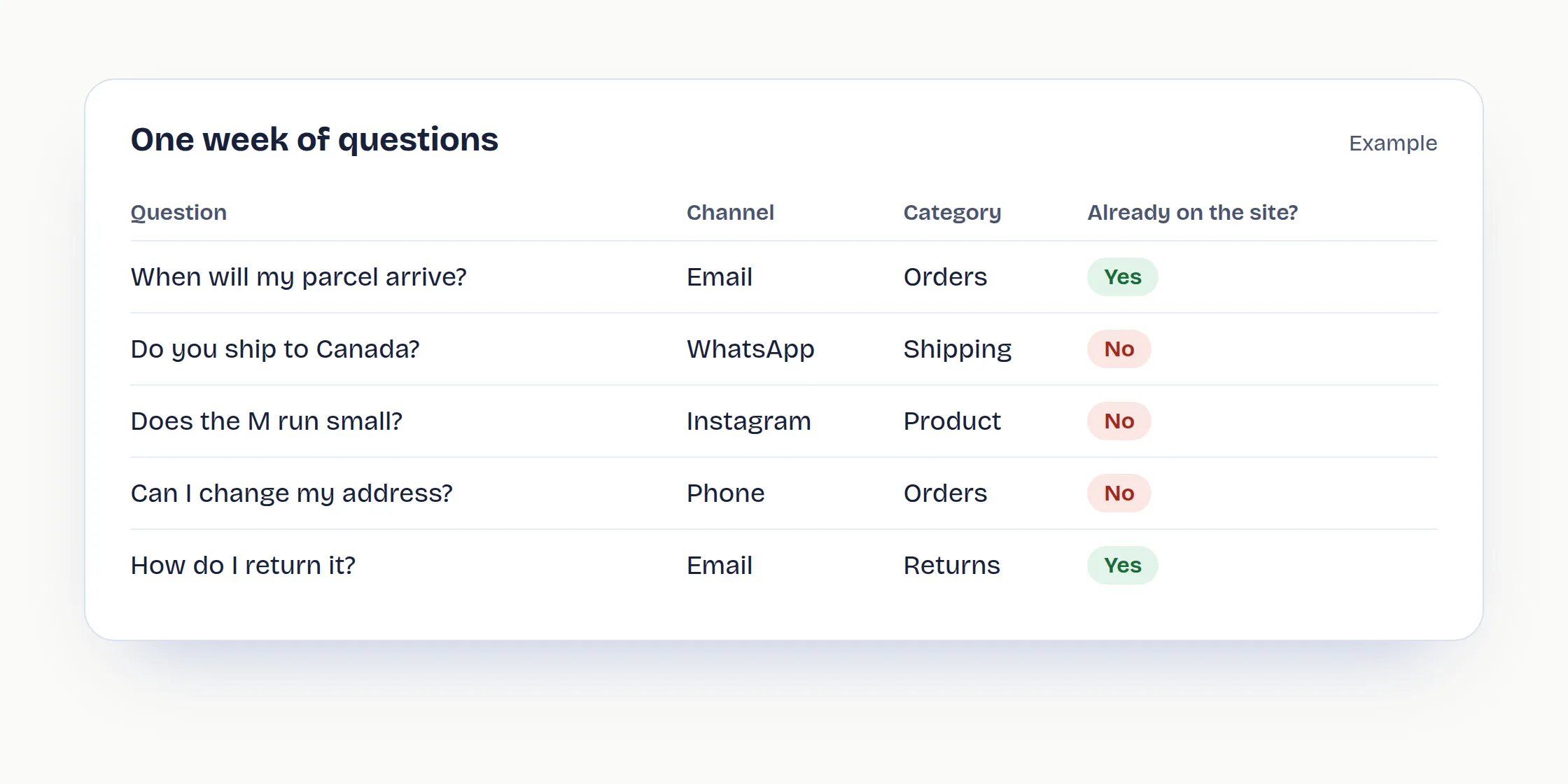
The "already on the site?" column is the most useful one. If the answer was there and the customer still wrote in, the problem isn't the information: it's where it sits.
2.Send order updates before customers ask
"Where's my order?" is almost always the most common question. You cut it by sending the right information at the moment the customer expects it.
- Check your automatic emails. In WooCommerce → Settings → Emails, make sure "Processing order" and "Completed order" are enabled, then rewrite the text: how many days until the order ships, which carrier, what happens next.
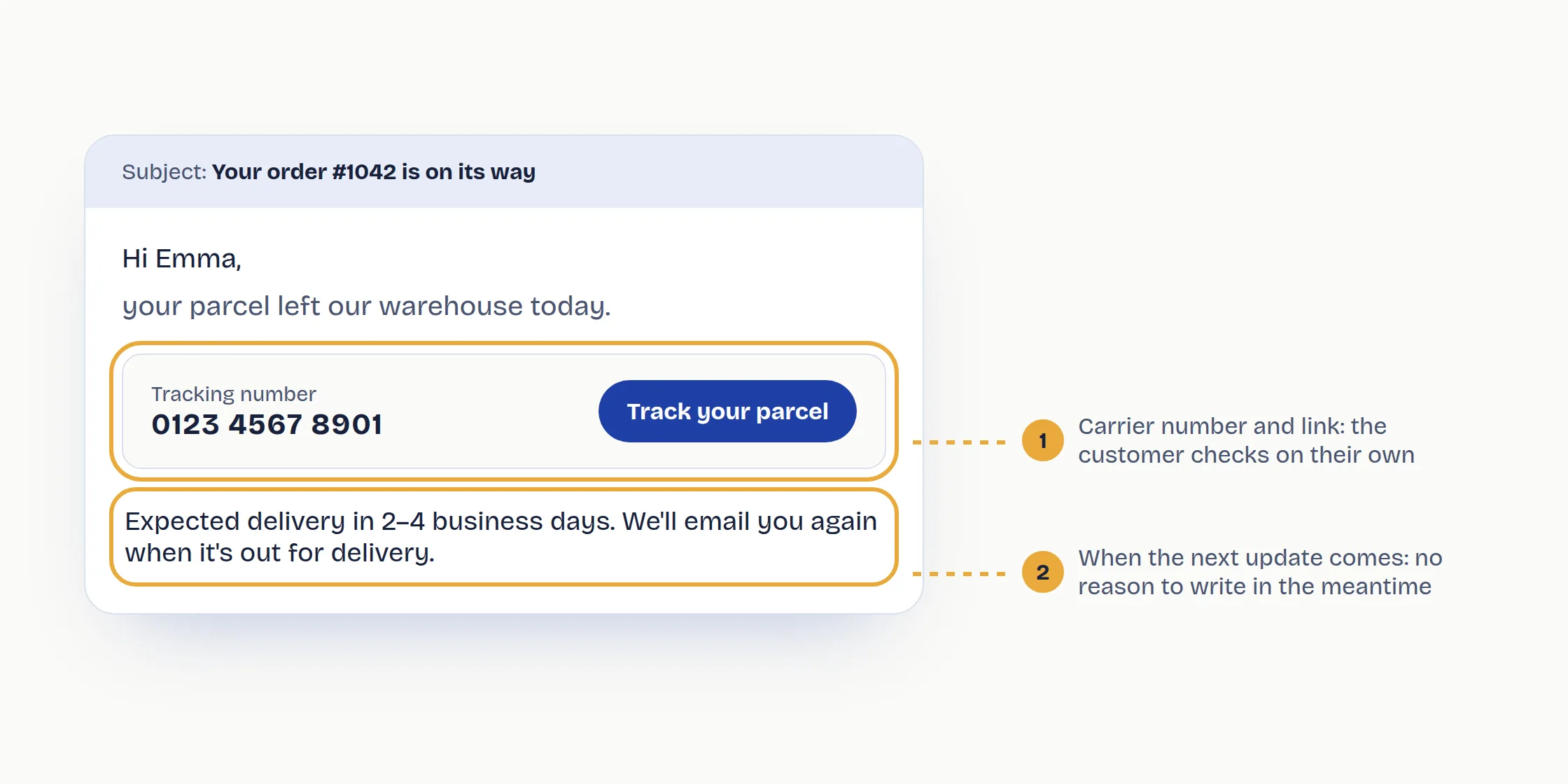
- Add the tracking number. WooCommerce doesn't handle it on its own: a shipment tracking plugin adds the number and the carrier's link to the email and the order page.
- Say when the next update will come. A line like "We'll email you again when your parcel ships, usually within 2 business days" removes the reason to write in the meantime. Use your real timings.
- Make orders easy to find in the account. The My account → Orders page shows status and details: link to it from your emails and your site menu.
3.Put shipping costs and times where customers decide
Many shipping questions come before the purchase: customers want to know what they'll pay and when it'll arrive, and if they can't see it straight away they write in or abandon the cart.
- A clear "Shipping" page: costs by zone, the free shipping threshold, handling and delivery times, carriers, and what happens if nobody is home.
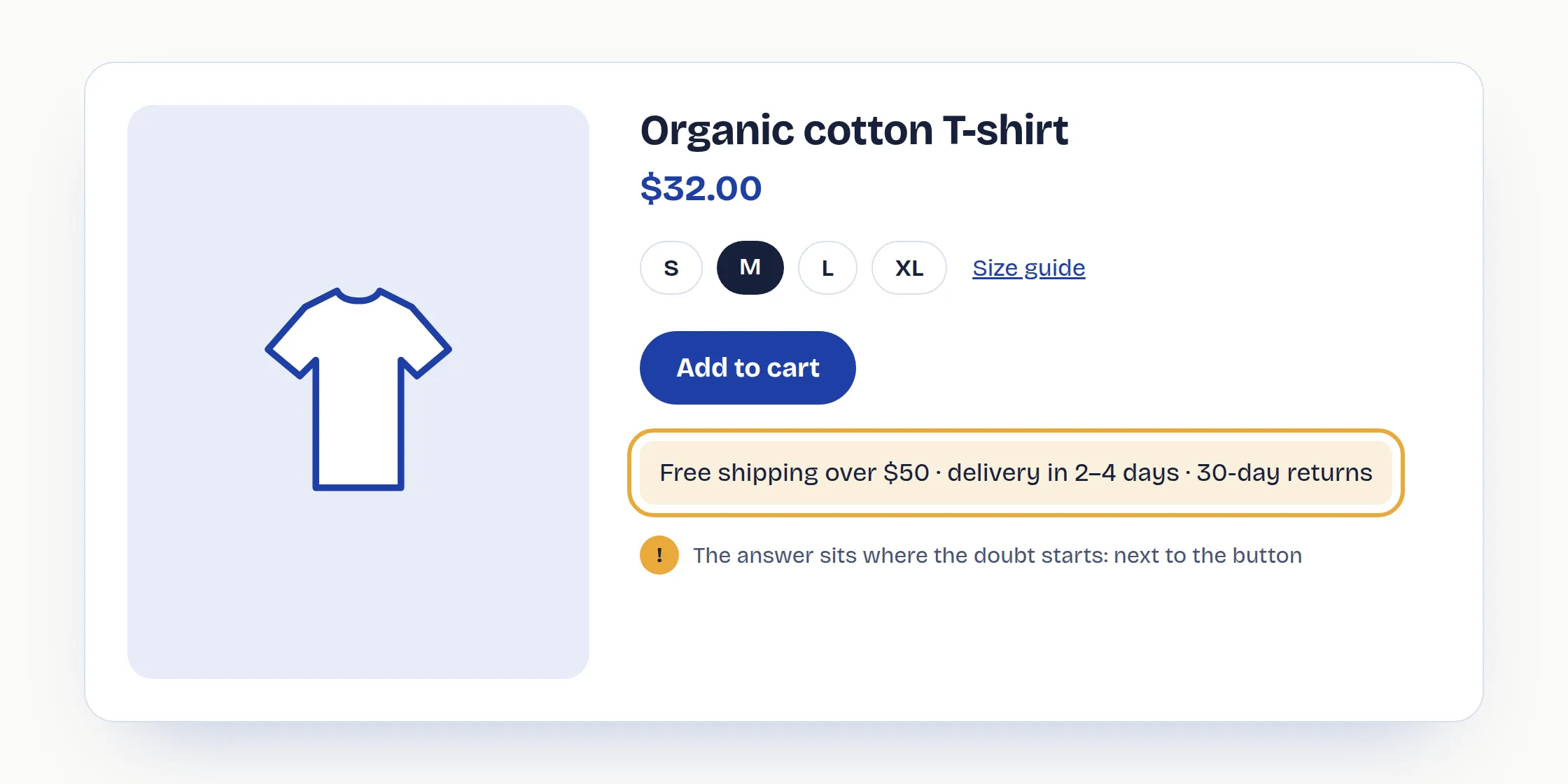
- One line under the "Add to cart" button: for example "Free shipping over $50, delivery in 2–4 business days". That's where the doubt starts.
- Consistent shipping zones: in WooCommerce → Settings → Shipping, check that zones and rates match what you've written. A different cost at checkout triggers a question straight away, and often an abandoned cart.
4.Explain returns in three steps
A returns policy written like a legal document creates questions. Keep the full text, but put a short version on top:
- You have a set number of days from delivery to change your mind. In the UK and the EU, customers have 14 days by law for most online purchases; in the US it's up to your store's policy, and 30 days is a common choice.
- Write to one specific address, or use a form, with your order number.
- Ship the item to the address we give you; the refund arrives within a number of days you state.
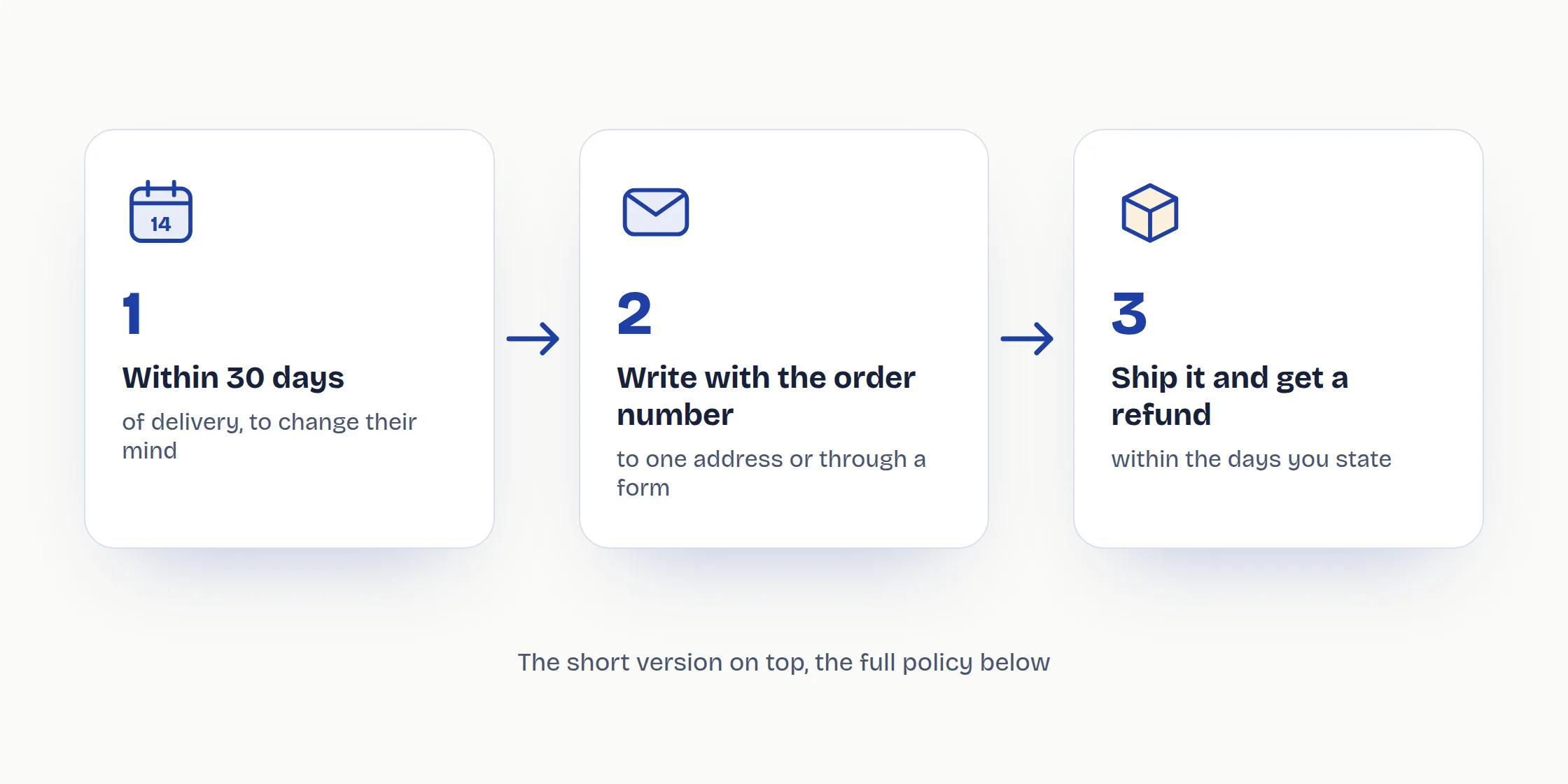
Then make the page easy to find: in the footer, in the order confirmation email and with a link on the product page. Customers who know they can send something back buy with fewer doubts, and ask less.
5.Add the answers you already give to your product pages
Questions about a single product are the easiest to remove, because the answer is always the same. A simple rule: the second time you get the same question about a product, write the answer on the product page.
- Sizes and fit: a size guide with measurements and practical advice ("if you're between two sizes, go up one").
- Materials, dimensions, weight, compatibility: use WooCommerce attributes (Products → Attributes) so they appear in the "Additional information" tab and stay consistent across products.
- Photos that answer: the product in hand or being worn, the back, the packaging, the labels with the details.
- Stock: if something is sold out, say when it's coming back or suggest an alternative.
6.Build an FAQ page in your customers' own words
A good FAQ page isn't a list invented at a desk: it's the spreadsheet from step 1, tidied up.
- Use the questions the way customers write them, not the way you would: "When will my parcel arrive?" instead of "Fulfilment times".
- Group them by category (orders, shipping, returns, payments, products) and keep the answers short, with a link to the full page.
- Link to it where it's needed: from the footer, the cart, the contact page and the order emails.
- Update it every month with the new questions that keep coming in.
7.Let an assistant answer when you're not around
Even with a perfect site, some customers would rather ask than search, and they often do it in the evening or at the weekend. This is where an automatic assistant comes in, either text-based (a chatbot) or voice-based.
To really work, it has to meet three conditions:
- Answer with your store's information, meaning the products, pages, shipping and returns you wrote in the previous steps, not generic or made-up answers.
- Say when it doesn't know, and tell customers how to reach you instead of improvising.
- Leave you a record of what was asked, so you can see which information is still missing from the site and close the loop with step 1.
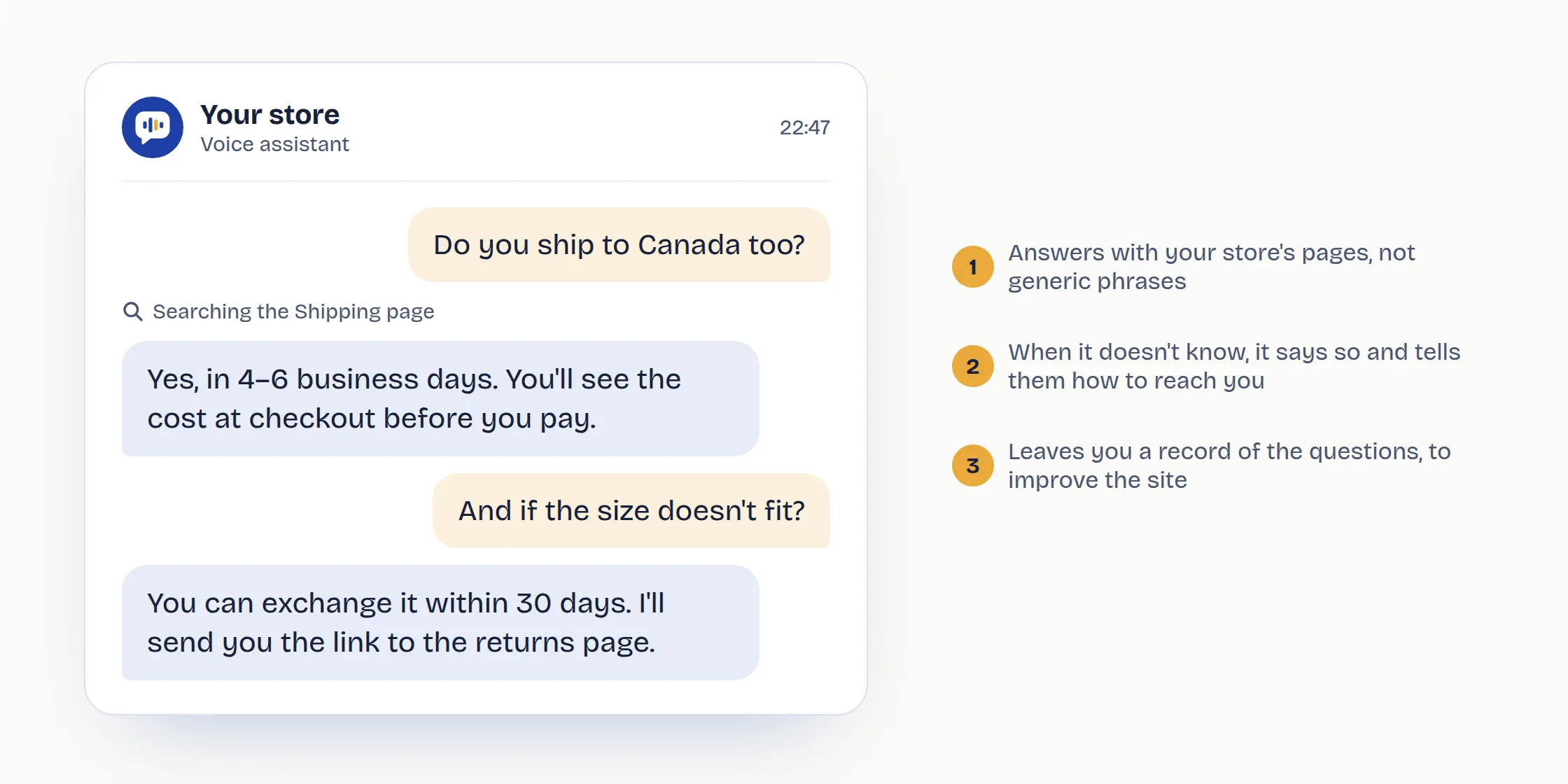
A voice assistant adds something chat doesn't have: customers speak the way they would on the phone, without typing. It's especially handy on a smartphone and for people with a long question or a doubt before buying.
After a month, count again
Repeat the count from step 1 for another week and compare it with the first. The categories that went down tell you what worked; the ones that stay high tell you where to work next. It's the simplest way to know whether the time you spent on the site is giving you time back.